
AmazonUS Amazon is the world's largest online store, dedicated to being the most customer-centric company globally, enabling consumers to find and discover anything they want to buy online, and striving to offer the lowest prices. Amazon and other sellers provide customers with tens of millions of unique new, refurbished, and used items, such as beauty, health & personal care, jewelry & watches, gourmet food, sports & outdoors, clothing, books, music, DVDs, electronics & office supplies, baby products, home & garden, and more.
Click to enter the US Amazon official website www.amazon.com
I. Registering a New Account on US Amazon
1. Open the US Amazon homepage. At the top of the page, you'll see a black navigation bar. Click "Start here" under "Your Account" on the right side to enter the new account registration page.
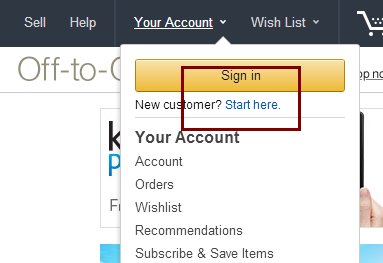
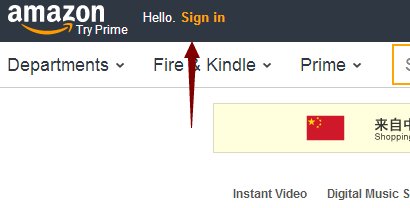
Additionally, "Sign in" on the left side of the navigation bar is the login button, but new users can also click it to start registration:
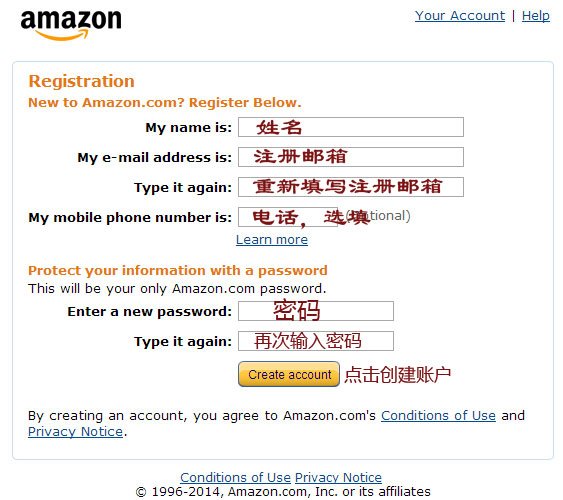
2. Fill in registration information. The new account registration page has a very simple information form. Fill in the information according to the annotations in the image below. Note that names should be entered in Pinyin following Chinese word order. For example, for "拔草哦", enter "bacaoo".
After filling in, click "Create your Amazon account" below to create the new account.
3. Complete Registration. After creating the new account, you will be automatically redirected to the product recommendation page. Here we can observe some simple navigation features of the US Amazon page.
First, there are three dropdown menus below the black navigation bar. Simply hover your mouse over them to see the menu content. In order, they are "Departments" product categories, "Fire & Kindle" Amazon Fire, Kindle series digital products, and "Prime" US Amazon Prime membership service. Next to them is the search box; enter product keywords to search for items.
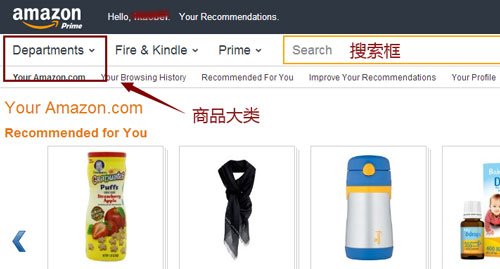
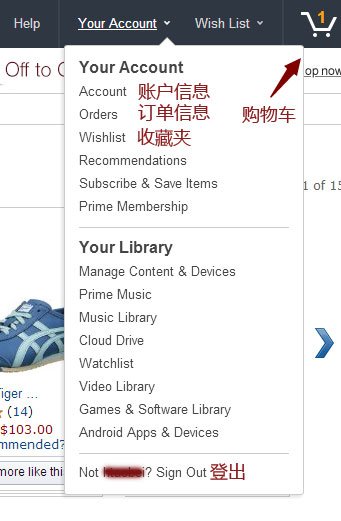
The right side of the product recommendation navigation bar is also rich in content. It not only moves the links forToday's Deals and Lightning Deals to the right, but also integrates "Your Account", "Wish List", and the shopping cart button into the navigation bar. Again, just hover your mouse over the text to see the dropdown menu. Under "Your Account", you can see "Account" account information, "Orders" order history, "Prime Membership" Prime membership service, etc. Click to enter the corresponding settings page.
II. Completing Personal Information
Whether using direct shipping or purchasing through a forwarding service, we recommend completing your personal information immediately after registering a new account, including shipping address, payment information, etc. US Amazon will adjust some information on product pages based on this data, making it easier to shop. For example, if the default address is set to China, the product page will automatically show whether the item can be shipped directly to China.
1. Set Shipping Address. Click "Your Account" on the right side of the navigation bar to enter the account information page. As shown below, this page displays Orders order history, Payment payment information, Settings account settings, etc.
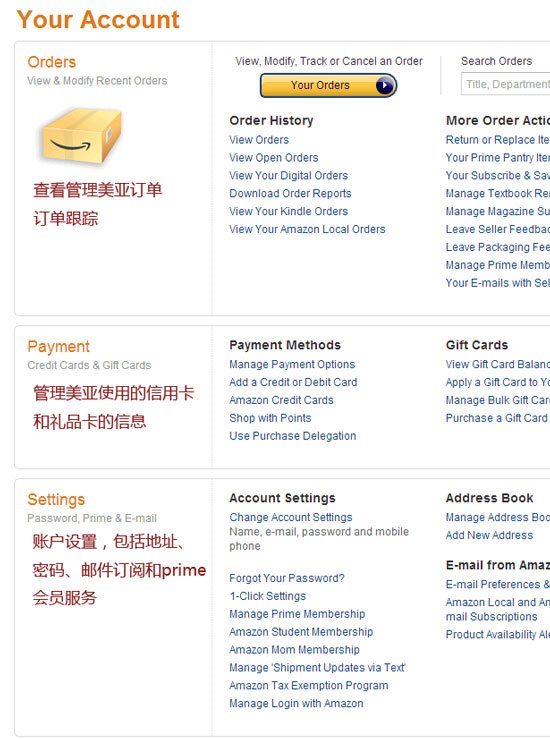
Personal Account Information Page
2. If you are a new user, clicking "Manage Address Book" or "Add New Address" on the far right of the Settings column will take you to the page for adding a shipping address. Existing users can only click "Add New Address" to add a new shipping address:
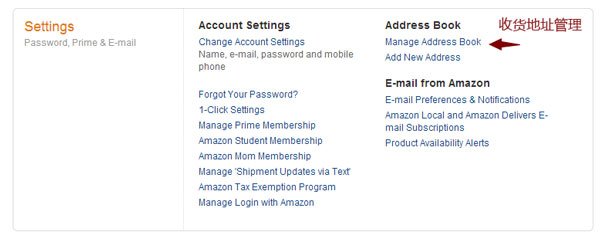
Manage Shipping Addresses
3. Enter Direct Shipping Address. The page for adding a shipping address is shown below. Fill in the information according to the red annotations. Note to use Pinyin following Chinese word order. For example, for "济南市历城区海淘路888号省钱小区6栋", you can enter "licheng Qu haitao Lu 888 hao" in Address line 1 and "shengqian XiaoQu 6 dong" in Address line 2.
The zip code and phone number below must be filled in accurately. It's best to use a mobile phone number and add China's country code "86". For example, if the number is 15988886666, enter "8615988886666" in the phone number field.
If it's a domestic address, select "China" in the "Country" field. After selection, an input box for "Citizen ID Number" will automatically appear below. Enter the recipient's ID card number here.
After selecting "China" for the shipping address, the automatically appearing input box is for entering the ID card number. If the ID card number ends with X, this field can be left blank:
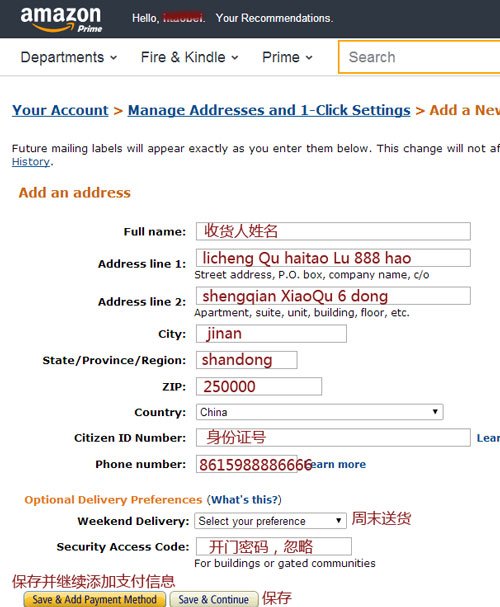
After filling in the ID card number and the information above, click "Save & Continue" at the bottom of the page to save the shipping address information. If you want to set up payment information afterwards, click "Save & Add Payment Method" on the left. Here, we'll click "Save & Continue" first, then check what changes occur on the Amazon product page after setting the shipping address to China.
4. After clicking "Save & Continue" in the previous step, you will enter the address management page. Here we can see the address information just entered. You can click "Edit" below the address to modify it, or click "Delete" to remove it.
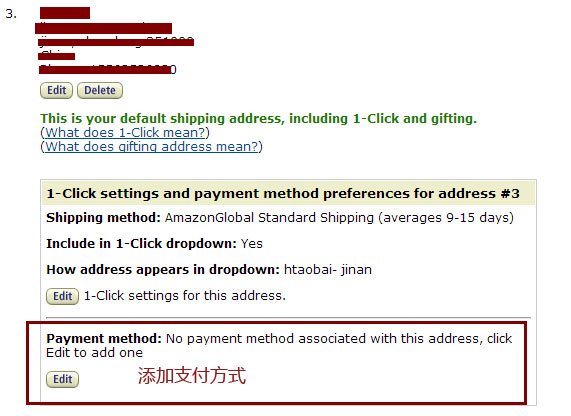
Additionally, clicking the "Edit" button in the Payment method section below allows you to add a payment method. We'll do this in the next step.
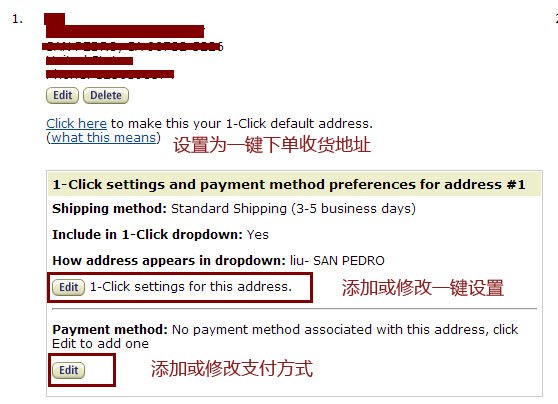
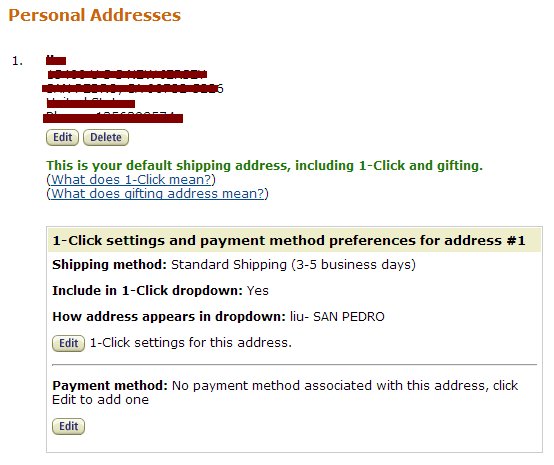
Furthermore, clicking "Click here" in the red box above can set this address as the default shipping address and the 1-Click order shipping address, making the shopping process easier. After clicking, text will appear in the red box below, indicating that this address has been set as the default shipping address.
Here we can also see that the shipping method for 1-Click orders is AmazonGlobal Standard Shipping, which takes a longer time, approximately 9 to 15 days after actual shipment. It is also the least expensive shipping method. We can change this during checkout.
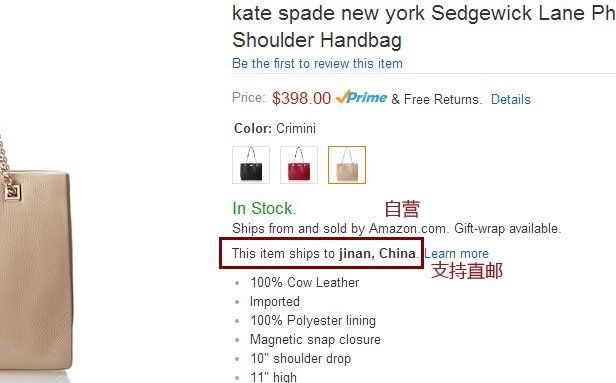
5. After setting the default shipping address to a Chinese address, we can directly see on any product page whether the item supports direct shipping to China. Take any wallet as an example. As shown below, the product information section will display "This item ships to jinan, China", indicating that this item supports direct shipping to China. Note that only items sold by Amazon themselves are likely to support direct shipping, meaning items stating "Ships from and sold by Amazon.com":
6. After confirming the shipping address, let's add a payment method. Go back to the "Your Account" page, under Settings, click "Manage Address Book". Then click the "Edit" button under Payment method below the previously saved default shipping address:
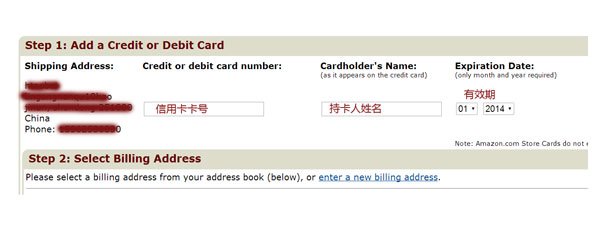
Adding a payment method takes you to the page for adding a credit card. First, fill in the credit card information according to the card: card number, cardholder name, and expiration date. No need to fill in the security code:
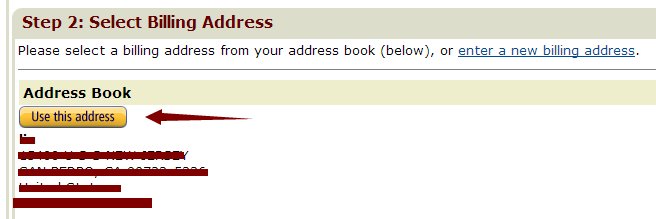
After filling in the credit card information in the top half, the next step is Step 2: Select Billing Address. It is recommended to use the real billing address, also filled in using Pinyin. The default shipping address will be displayed first. If the billing address is the same, click "Use this address" to set the shipping address as the billing address.
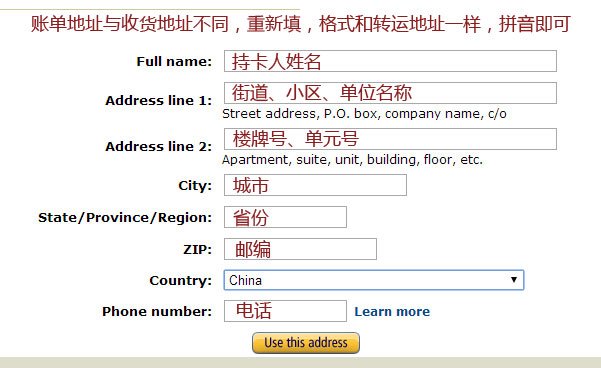
If the shipping address and billing address are different, you can enter a new address. After completing, click "Use this address" below to save it:
7. After saving the payment information, we can see on the address page that the saved credit card number is now displayed in the Payment method section below the shipping address. You won't need to enter it again for future purchases. If you need to change the credit card or modify information, click the "Edit" button at the bottom again.
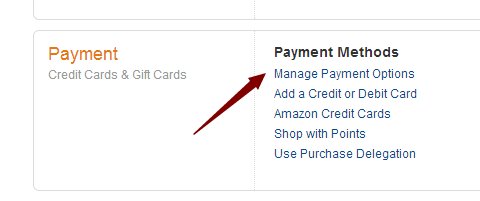
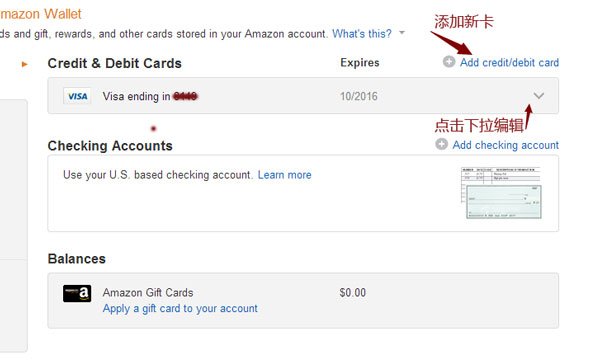
8. Additionally, in the Payment section of "Your Account", you can click "Manage Payment Options" in the middle to enter the "Your Amazon Wallet" page to manage payment methods. You can add or delete credit cards here. US Amazon also supports domestic UnionPay credit cards.
At this point, the registration and personal information setup process for US Amazon is complete. The next step is to start shopping.
III. US Amazon Shopping Process and Precautions
1. Product Categories and Common Promotional Information
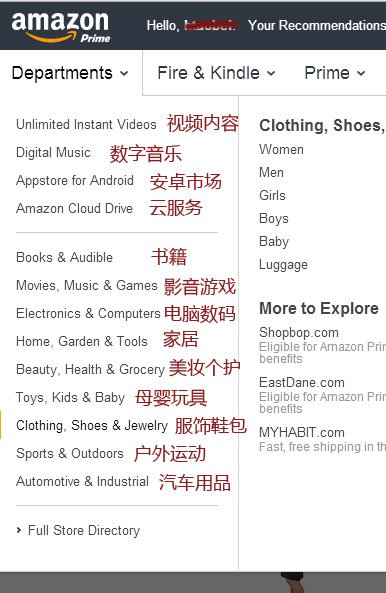
① Let's go back to the US Amazon homepage and look at the Departments product categories. The top four categories are Amazon's online content services. International shoppers are more interested in the categories below, such as Clothing, Shoes & Jewelry, Baby, Beauty & Personal Care, Electronics & Computers, etc. These items often have good prices, and various promotional codes released from time to time can bring more cost-effective options. Clicking on a subcategory name under a main category will take you to a dedicated page where you can see ongoing promotions.
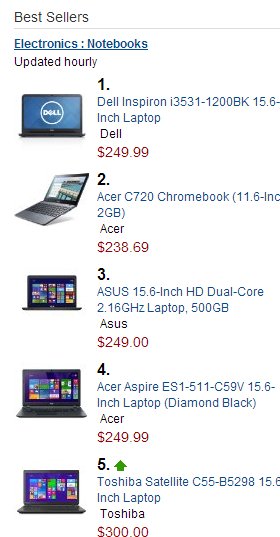
② On the right side of the homepage, you can see variousBest Sellers sales rankings. You can check out popular items. The Best Sellers also has a dedicated page where you can see sales rankings for various categories:
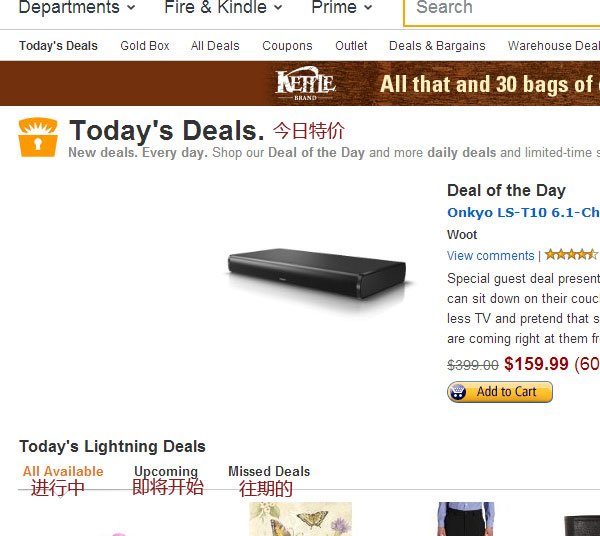
③ Another important promotional section is on the right side of the top navigation bar: Today's Deals. This includes US Amazon's Deal of the Day and Lightning Deals. The former lasts only one day, while the latter is updated regularly daily:
2. Searching for Products
Generally, if you have a clear purchase target, using the search function can locate products more quickly and accurately. The US Amazon search box is right in the center of the page, below the navigation bar. Enter any product keyword. Of course, the more precise the keyword, the better the search results. Here we focus on how to filter for items that support direct shipping.
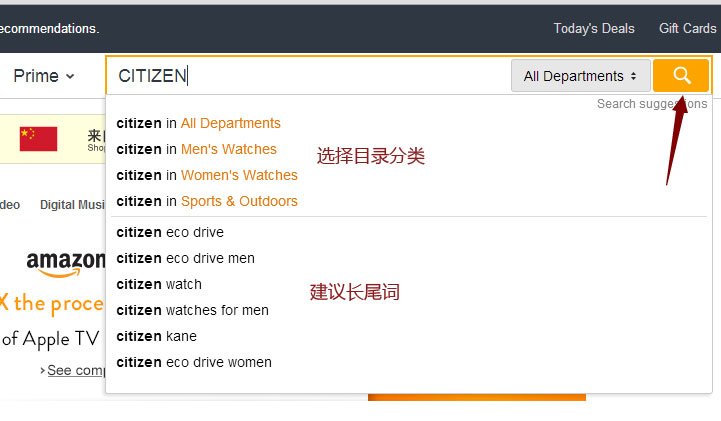
① Take searching for "CITIZEN" watches as an example. Enter "CITIZEN" in the search box. US Amazon will automatically pop up search suggestions. You can choose the target category or other related keywords. After confirming the keyword, press Enter or click the magnifying glass button on the right to enter the search results page.
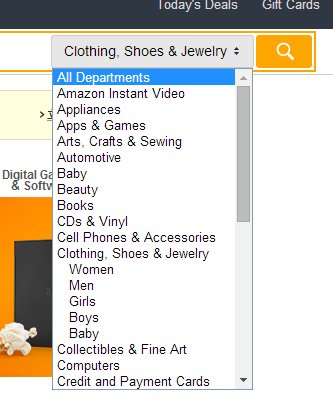
② Using "CITIZEN" as the keyword yields tens of thousands of results. First, select a product category on the left side of the page to exclude irrelevant results. Hover your mouse over "Choose a Department to sort" in the upper right corner; a list of product categories will appear. For example, if we are looking for CITIZEN watches, click "Clothing, Shoes & Jewelry" in the list. This will only show CITIZEN-related products under this category, immediately narrowing the search results to less than 1200 items.
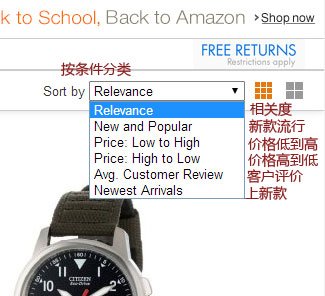
③ After narrowing the scope, you can sort the products. Still in the upper right corner, the "Choose a Department to sort" selection box before selecting the product category has automatically changed to a "Sort by" sorting box.
We can sort the search results by Relevance, New and Popular, Price, Avg. Customer Review, Newest Arrivals, and other criteria:
④ The left side of the page also provides various filtering options, allowing you to filter by brand, color, price range, discount level, and more. Here we focus on how to filter for items that can be shipped directly.
First, in the "Seller" section on the lower left side of the page, check "Amazon.com". This will exclude items not sold by Amazon themselves.
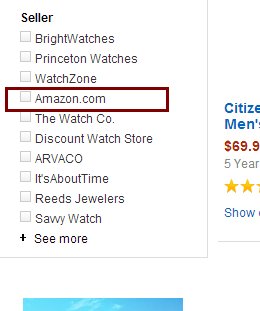
After filtering for Amazon-sold items, check "AmazonGlobal Eligible" in the "International Shipping" section. This will filter for items that can be shipped internationally. After selecting these two options, all products in the search results will support direct shipping and be sold by Amazon, making it easy to choose shippable items. Now let's look at the product detail page.

Recommended Deals
- 12 Reliable Australian Online Shopping Sites Recommended Locally
- Kohl's Black Friday Ad Released, Early Black Friday Sale Now Available
- Skims Official Website 2024 Latest Overseas Ordering Guide
- Nordstrom Rack Official Site: Latest Overseas Shopping Guide
- Kiko Cosmetics UK Official Website Latest Overseas Shopping Guide
- G&B NegoziOnline Official Guide: Latest Tips for Placing Orders on Overseas Sites