

Godiva is a Belgian chocolate brand with nearly a century of history, dating back to 1926. It uses premium cocoa ingredients sourced from South America, Africa, and other regions, offering distinct layers, a melt-in-your-mouth texture, and an excellent taste. Since 1968, Godiva has been the official chocolate supplier to the Belgian Royal Family, earning a reputation as the most luxurious chocolate—the Rolls-Royce of chocolates. Besides the Belgian royal family, many world-renowned figures, such as former U.S. President Bill Clinton and actress Elizabeth Taylor, are devoted Godiva fans.
Godiva US Official Website: https://www.godiva.com/
Below is a guide to shopping on the Godiva US official website via international shipping:
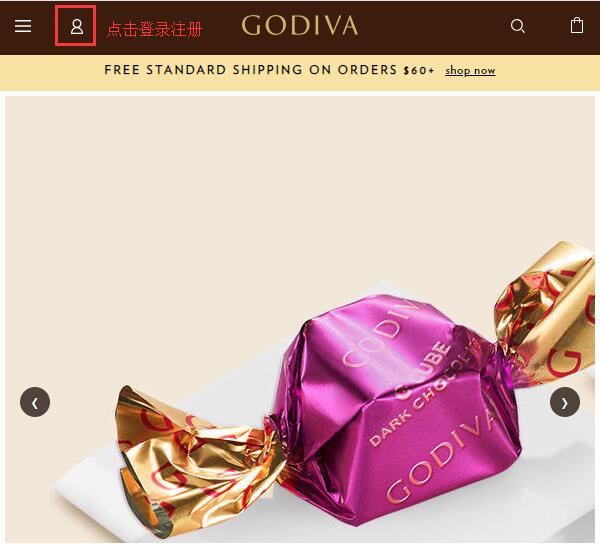
1. Step one: Create an account. Open the homepage, click the profile icon in the top left corner, and proceed to log in or register:
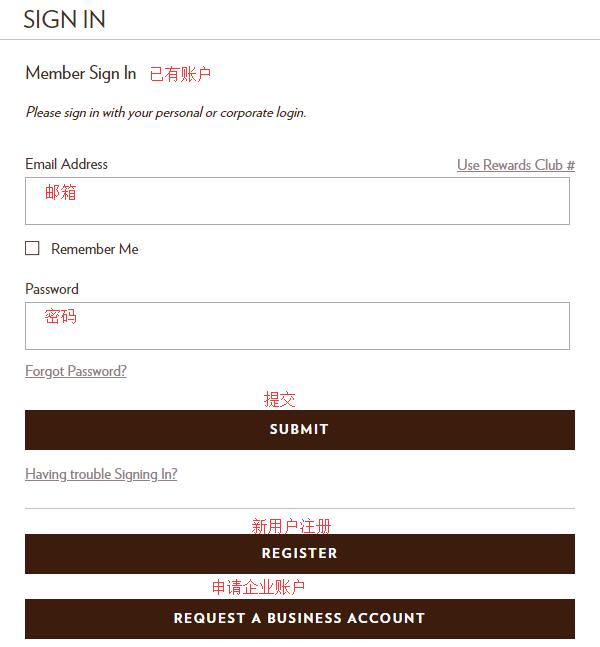
Existing users can directly enter their email and password and click "Sign in" to log in. New users should click "Register" below to sign up. The official website also accepts business account applications; click "Request Business Account" below to apply:
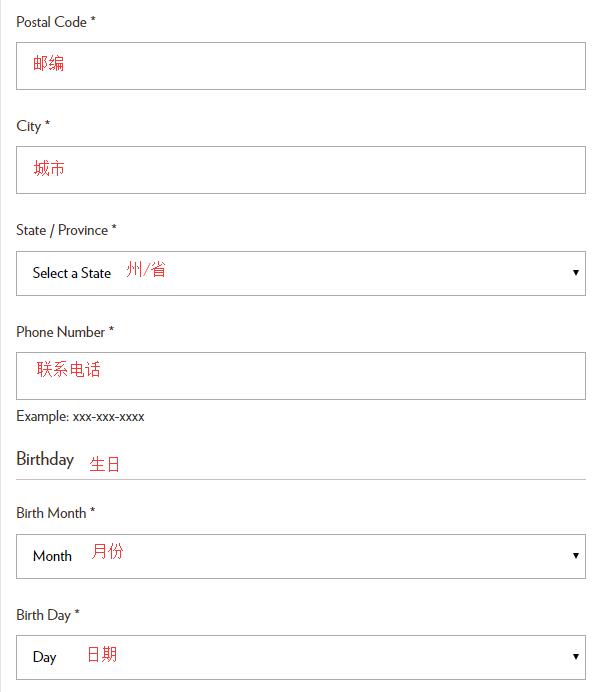
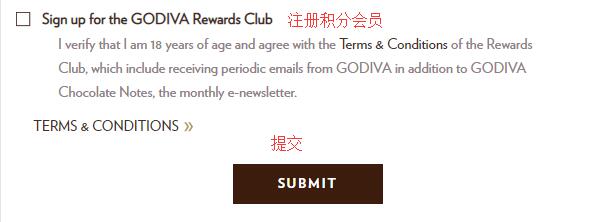
Enter your name, email, password, address, and other information as shown below, then click "Submit" to complete registration. Since the official website currently does not support direct shipping, you can enter a US forwarding address in the address field.
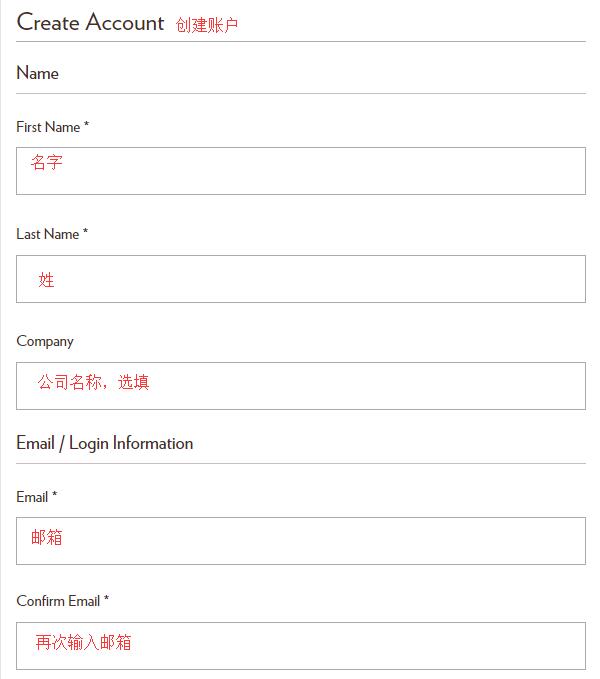
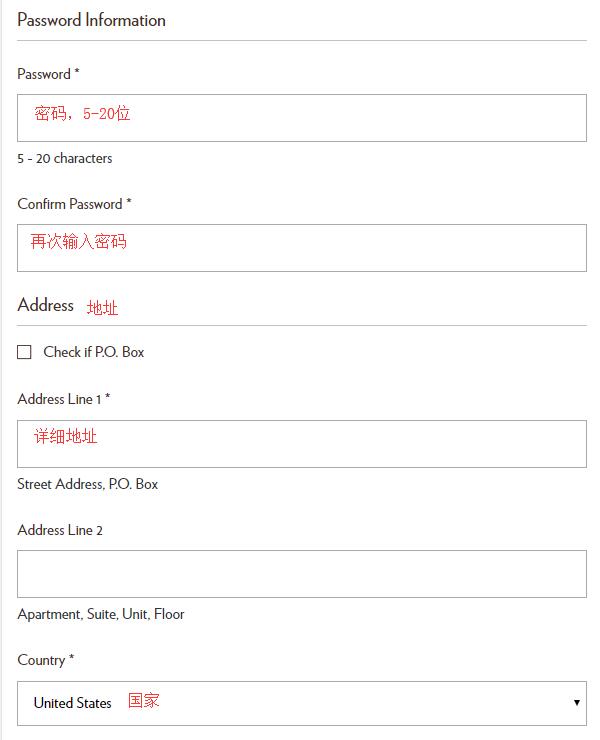
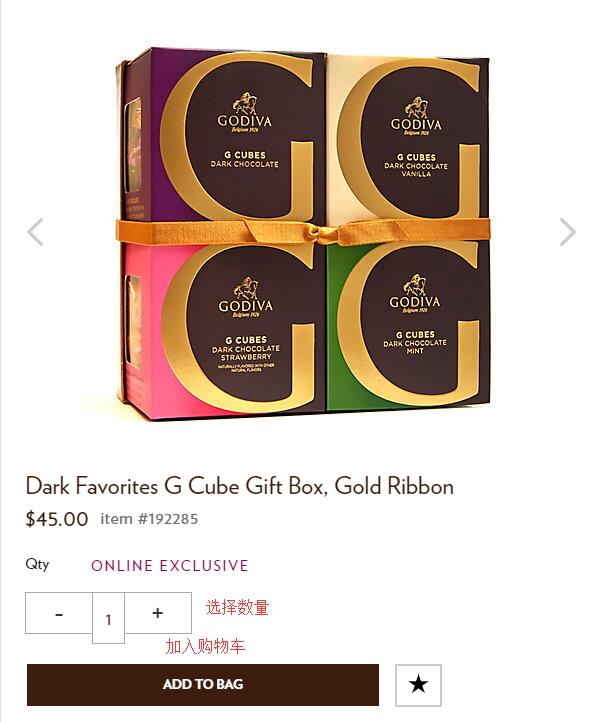
2. Once the account is created, start shopping. You can search for your favorite products. Godiva launches holiday gift boxes, such as for Christmas, every year. If you are interested, consider them. After selecting a product, go to the product page, choose the quantity, and click "Add to Bag" to add it to your cart:
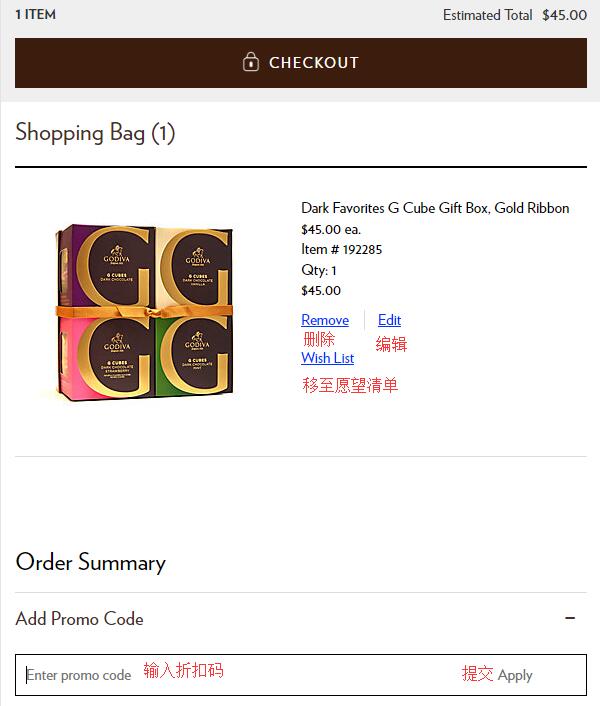
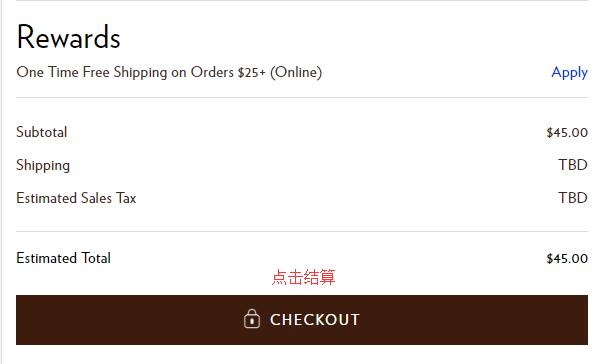
3. Go to your shopping cart, verify the product details are correct, and click "Checkout" to proceed. If you have a discount code, you can enter it at the bottom of the page to receive the corresponding discount.
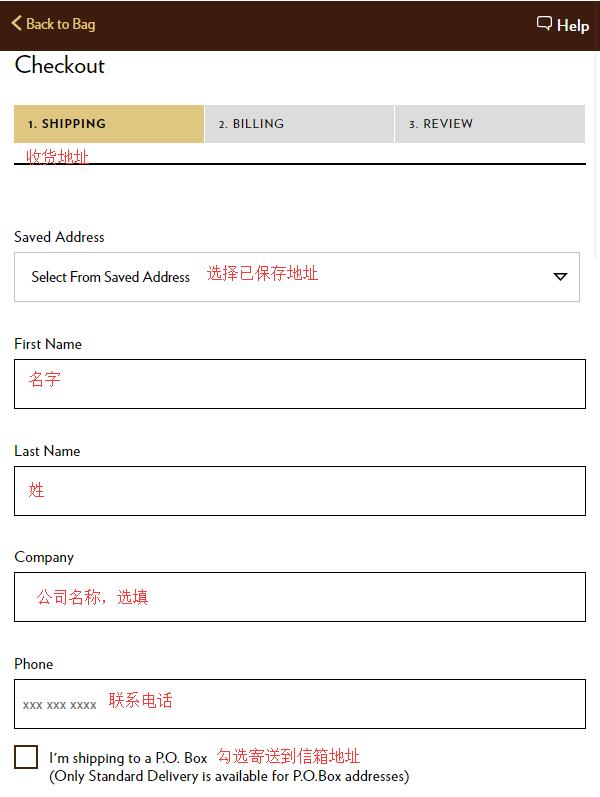
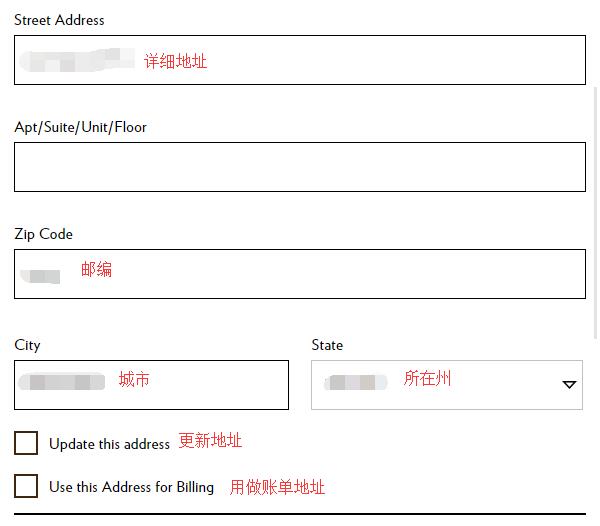
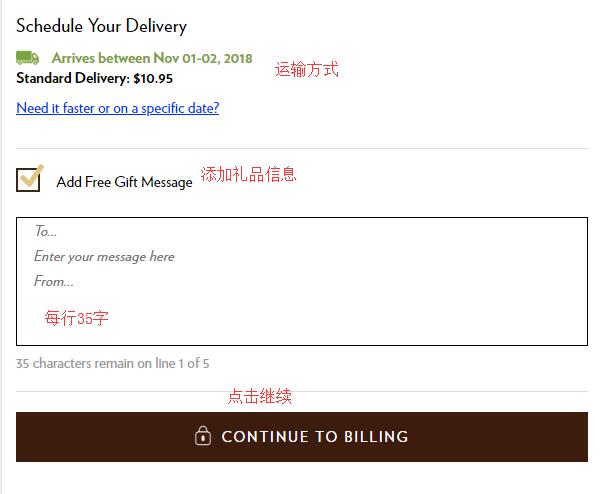
4. The first step of checkout is to enter the address information. Since you already submitted the address during registration, you can directly click "Select from saved address" to choose a previously entered address. If shipping to a different address, you can enter it in the dialog box below. Please strictly follow the requirements of your forwarding company. Then, select the default shipping method. Below that, there is a "Gift option" you can choose based on your needs:
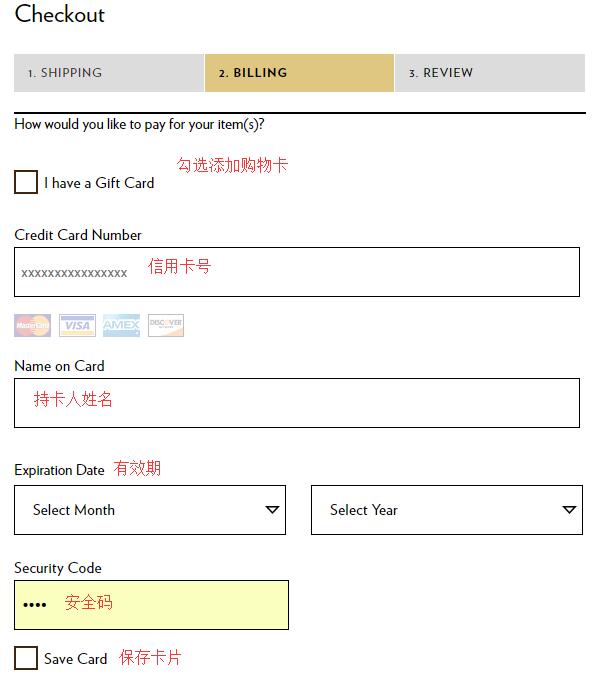
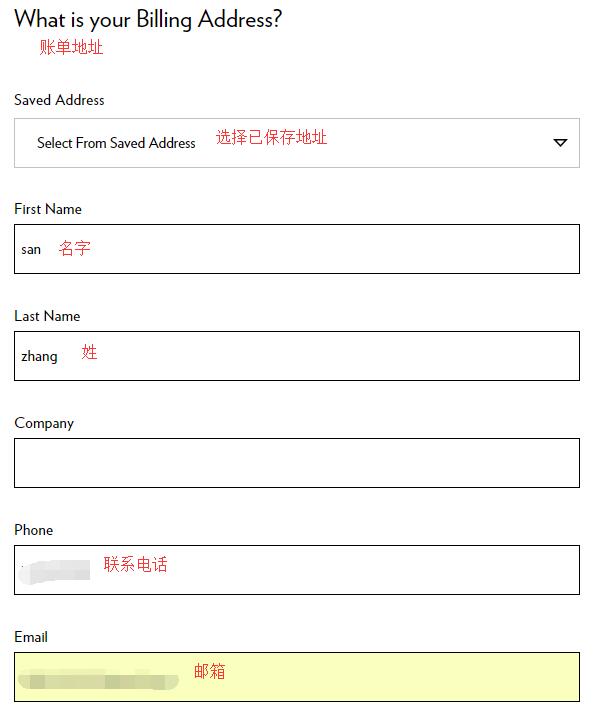
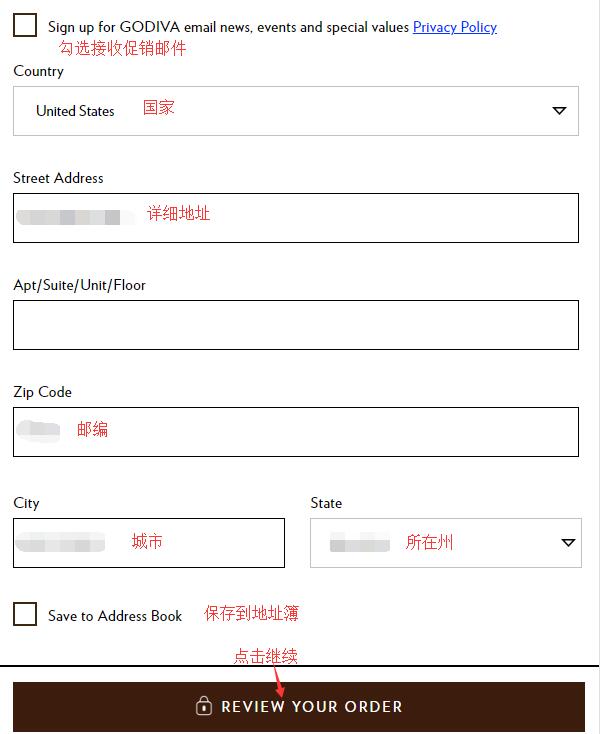
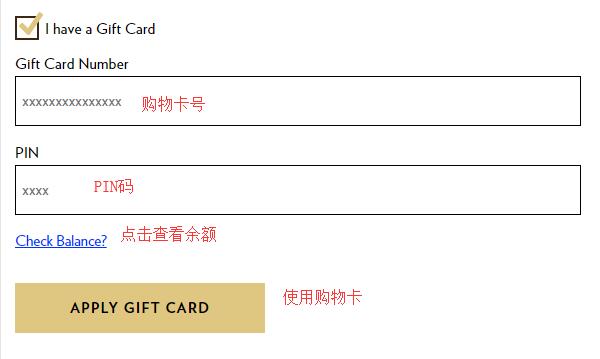
5. Next, proceed to the payment section. The website supports payment via Gift Card. If you have a gift card, click "I Have a Gift Card" to expand the field, enter the gift card number and PIN code, and click "Apply" to use it. Generally, we choose to pay by credit card. Enter your credit card number, cardholder name, expiration date, security code, and other details as shown below. Verify the billing address, ensure everything is correct, and click "Review my order" to check your order. Note that the billing address can be the forwarding address you entered earlier, or you can enter your actual domestic billing address. Typically, the forwarding address is used by default.
Gift Card usage instructions:
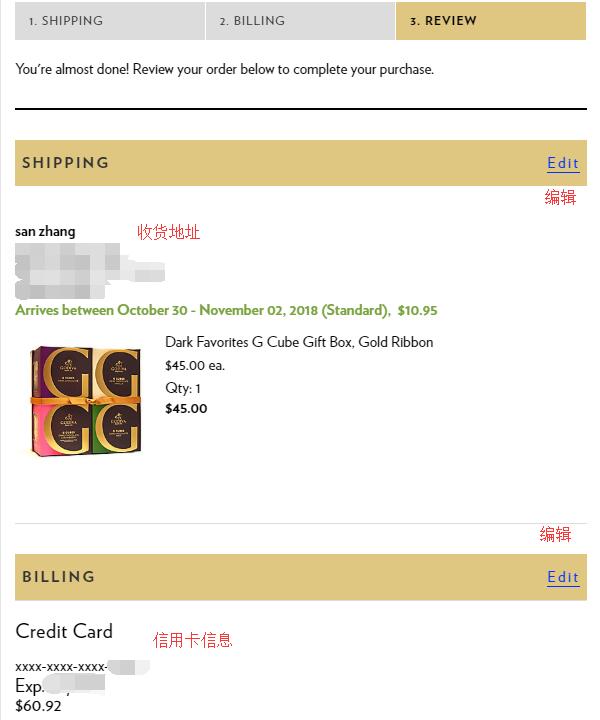
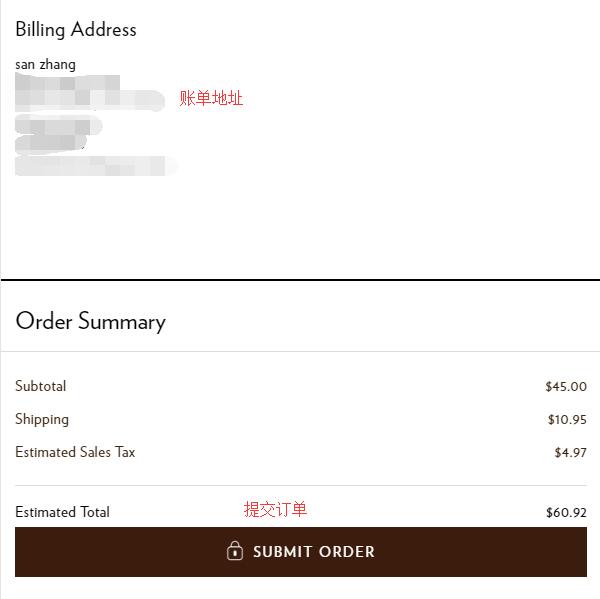
6. The final step: review and submit the order. Carefully check the product, address, and payment information. Once everything is confirmed correct, click "Submit Order" below to place the order.
This completes the entire shopping process. If you want to check your orders, go to "My Account" and click "Order History" to view order details and more.