
DELL Dell US official website is the US site of the Dell brand. Dell is a well-known American computer brand headquartered in Texas. Its official website sells Dell computers, accessories, and the full range of Dell products online. Overseas shopping on the Dell US official website is still much cheaper than buying domestically, so it is also very popular among domestic users!
Today, the editor mainly introduces the overseas shopping ordering process on the Dell US official website. Interested friends, please continue reading below!
Dell US official website entrance: www.dell.com/en-us Click to enter
The overseas shopping process on the Dell US official website is as follows:
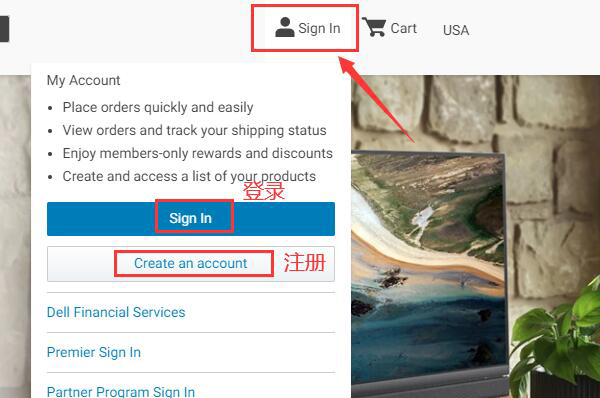
1. Click "Sign in" in the upper right corner of the Dell US official website to log in or register. If you have an account, choose to log in directly using your email and password. If you don't have an account, you can click to register directly. Below, we will use new user registration as an example to explain in detail.
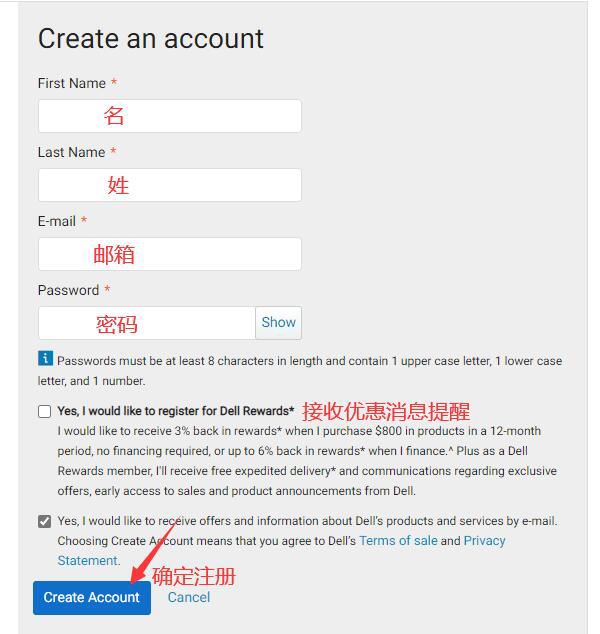
2. For new user registration, fill in the corresponding personal information as required. There are also promotional emails sent from time to time by the website; you can check them according to your personal needs. Then click "Create Account".
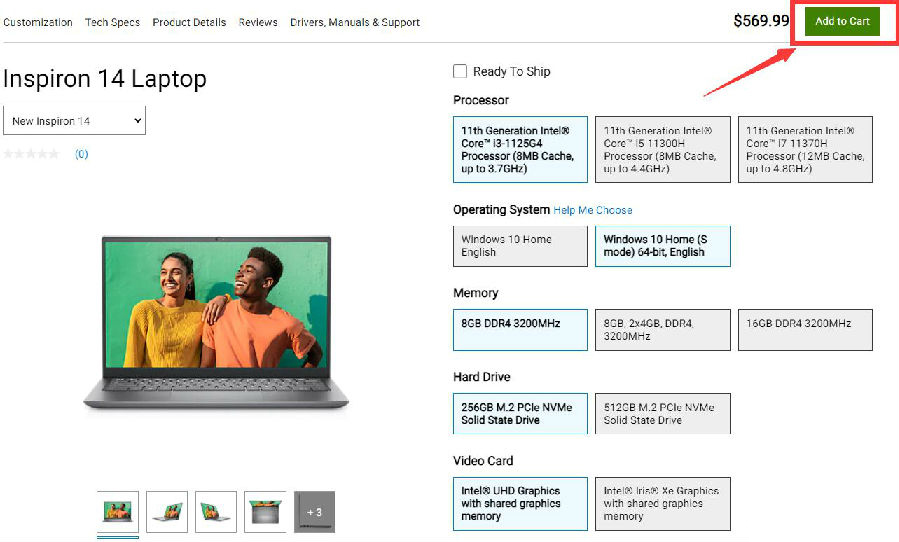
3. After successful registration, you can select products on the Dell official website. We choose a Dell laptop and click "ADD TO CART" to add it to the shopping cart.
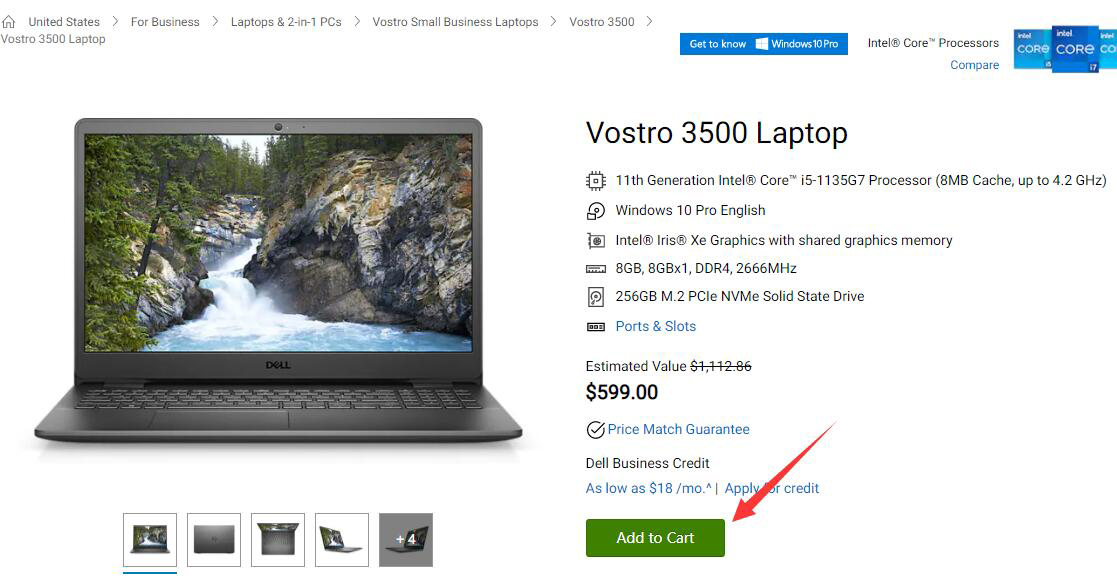
As shown in the image below, the page for selecting a model to add to the cart looks like this. When selecting products to add to the shopping cart, the method varies for different products. Some require selecting accessories, configurations, or models before entering the cart page. Just follow the prompts step by step.
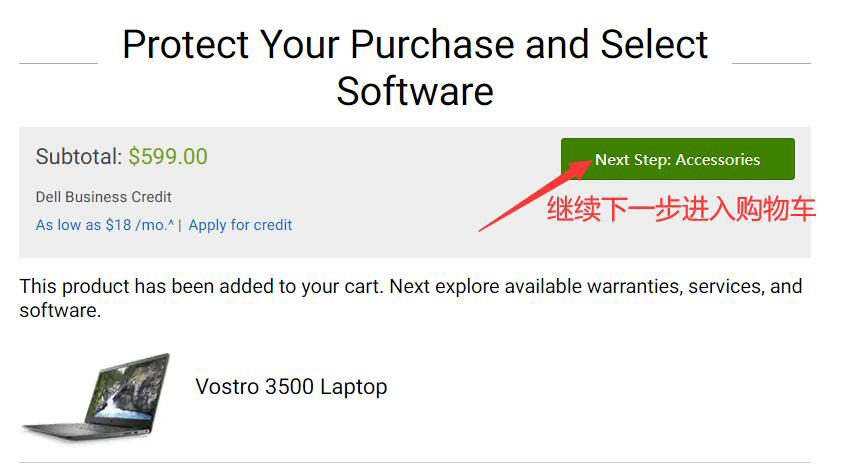
4. After clicking "ADD TO CART" to add to the shopping cart, some accessories will be recommended below. If you don't need these accessories, you can ignore them. Then click "NEXT STEP CART" to proceed to the next step and enter the shopping cart page.
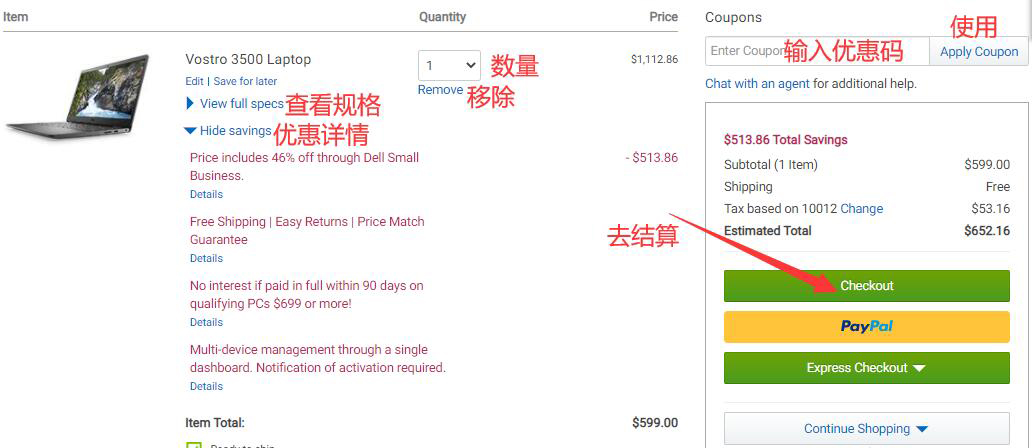
5. On the shopping cart page, you can see the basic information of the purchased Dell laptop. You can enter a discount code at the top, and also estimate the tax. Then click "CHECKOUT" to proceed to checkout.
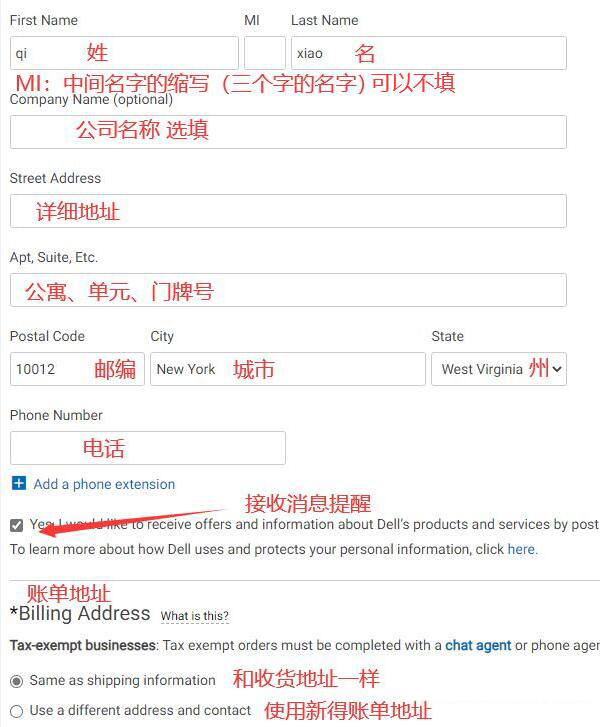
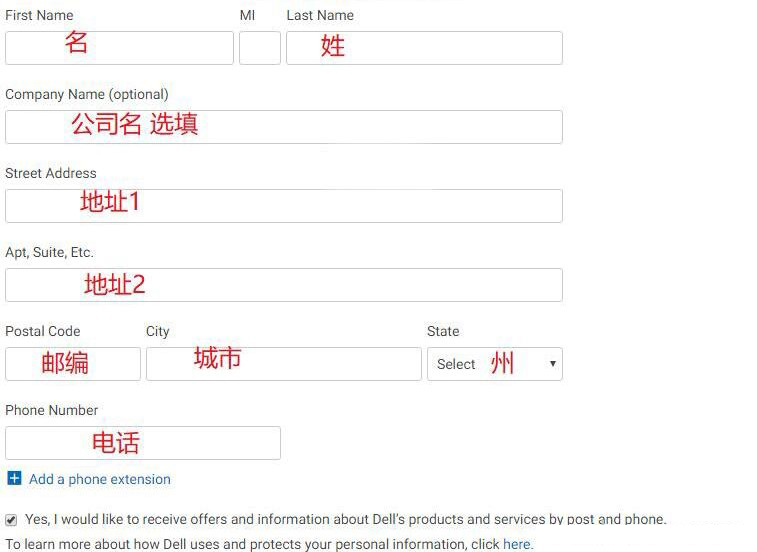
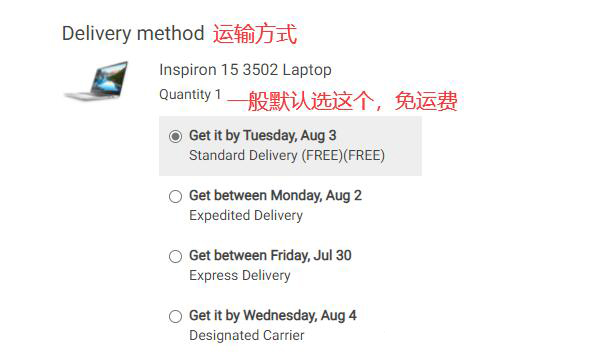
6. Enter the checkout page to fill in the address. The Dell US official website does not support direct shipping. Please refer to the US forwarding address for filling in here. For the billing address, try to fill in a real billing address to reduce the chance of order cancellation. Continue to select the shipping method. After filling in the address and shipping method, finally click "NEXT PAYMENT" to proceed to the next step for payment.
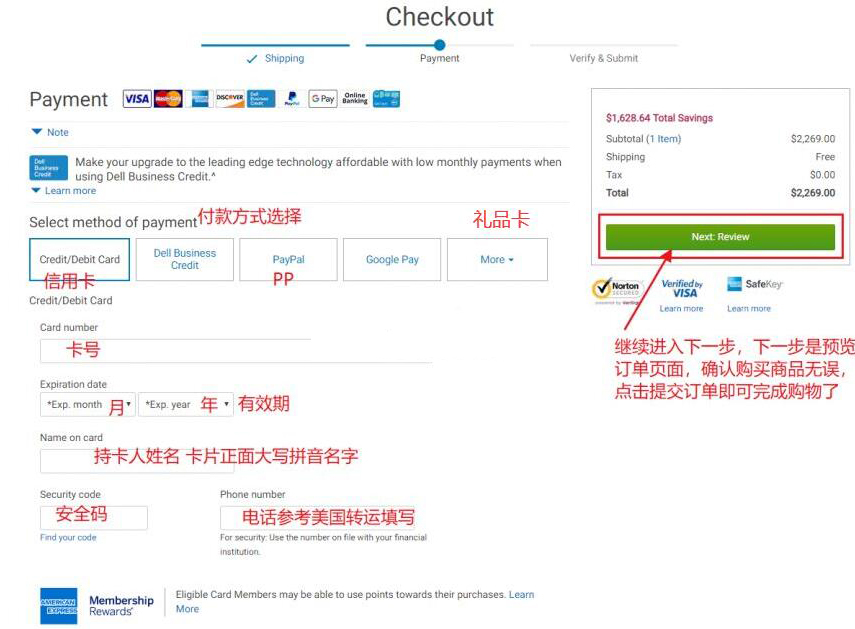
7. Go to the payment page to select a payment method. Payment methods include credit card, PayPal, and gift card payment. We will use credit card payment as an example. After filling in the credit card information, click "NEXT REVIEW" to enter the next step to preview the order. Then you will enter the order preview page. After confirming that all information is correct on the order preview page, click "SUBMIT" to submit the order (no demonstration here).
8. After payment, just wait for the website to ship the goods. After the website ships, you can use the tracking number to make an advance declaration to the forwarding company. Once the forwarding company receives the goods, pay the shipping fee, and wait for the goods to be shipped out and received domestically.
General forwarding companies offer lines with a tax-inclusive model. The fees for different forwarding lines may vary. Some include tax, and some do not. Before placing an order, consult the forwarding customer service about the relevant situation. The tax rate for laptops is 13%. Some forwarding companies that do not include tax use USPS lines. If taxed, you will need to pay the tax yourself.
Laptops are also valuable items. You can carefully consider whether to choose value-added services like insurance. Many US forwarding companies cannot ship valuable items and luxury goods.