

Banana Republic is a casual clothing brand from the United States, under the GAP Group. Its style leans towards minimalist luxury, with trendy and innovative designs, positioning itself in the mid-to-high-end market. It follows an extremely minimalist route, embodying understated luxury. Banana Republic is widely sought after for its high-end fabrics, tailored cuts, and unique texture. It is one of the most accepted and beloved brands among the American public. The brand was founded in 1978 in California by Mel Ziegler and Patricia Ziegler, and was acquired by Gap in 1983, transforming from a brand originally offering only vacation-themed clothing into a high-end luxury apparel brand. The minimalist designs achieve their unique texture through high-end tailoring and premium fabrics, making them incredibly comfortable to wear.
Today, let's share a guide on how to shop on the Banana Republic official website.
Banana Republic Official Website URL: https://bananarepublic.gap.com/
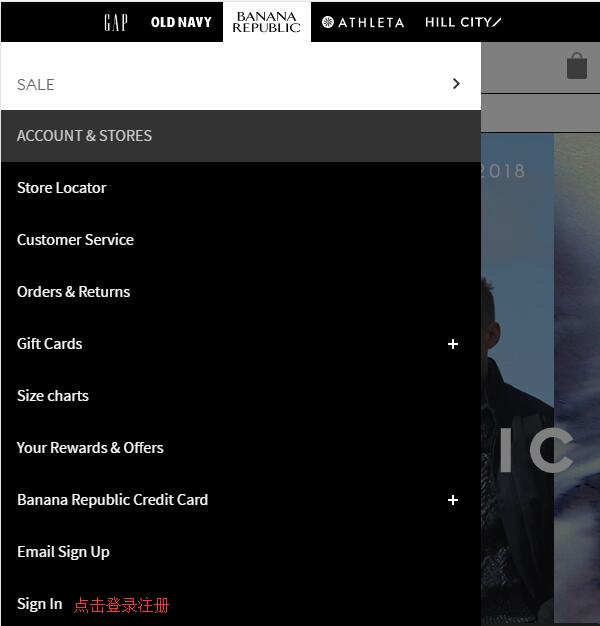
1. First, we need to register an account. You can click to expand the menu options in the upper left corner of the homepage:

Click the "Sign in" text at the bottom of the page to log in or register:
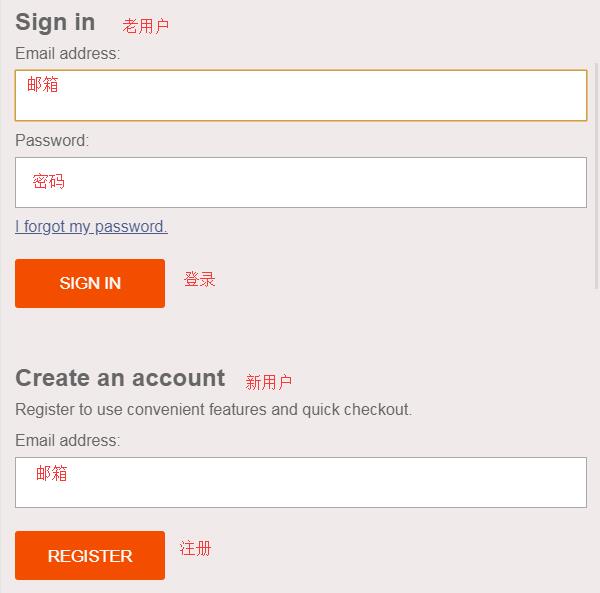
Returning users or those with Gap or Old Navy accounts can log in directly using their email and password. New users should enter their email under "Create an Account" and click "Register" to sign up:
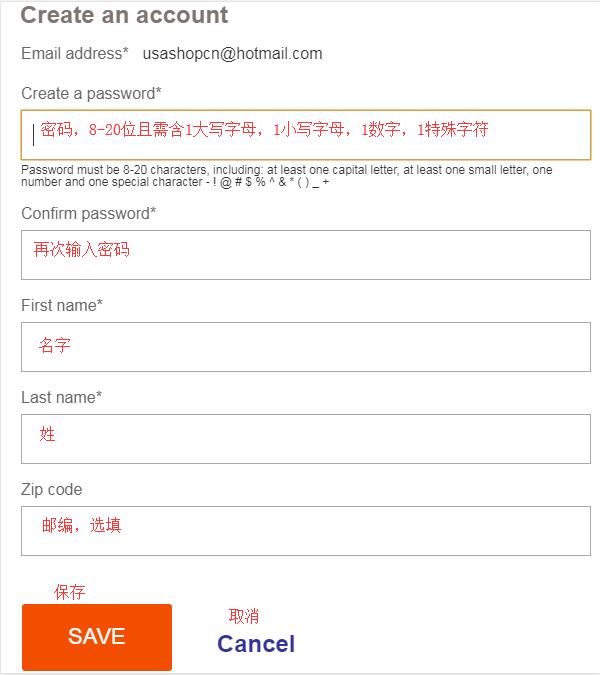
To register an account, based on your existing email address, enter your password, name, and other information, then click "Save" to complete the registration.
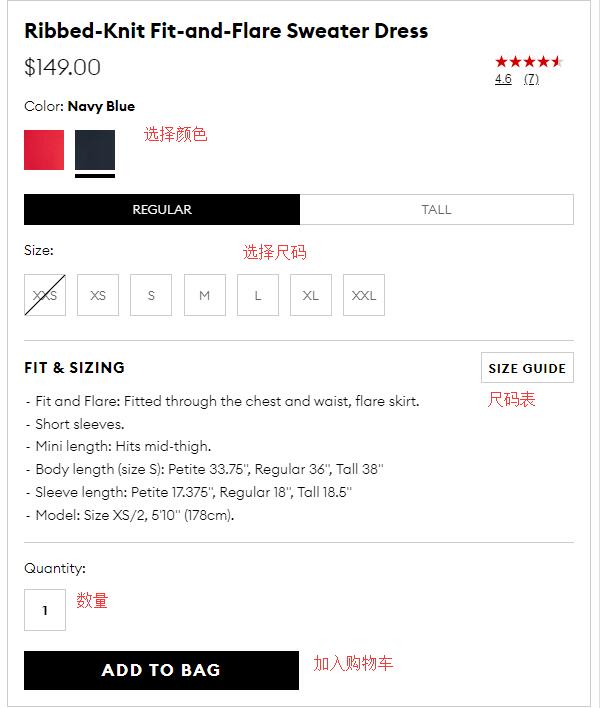
2. After registering, we can start shopping. You can browse based on homepage promotions, categories, or search directly for products. Note that Banana Republic offers outfit recommendations for featured products. Clicking on them will show the individual item purchase options for the model's clothing; just buy according to your personal needs. Let's take the following women's skirt as an example to introduce the specific shopping process. Enter the product detail page, select the color, size, and quantity, then click "Add to Bag":
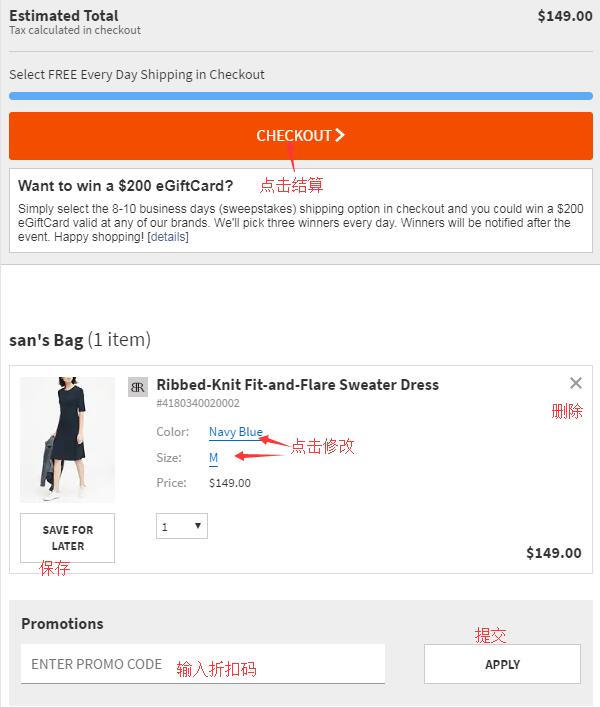
3. Enter the shopping cart, verify the product information, and click "Checkout" to proceed. If you have a discount code, you can enter it below to get the offer. For example, we can see a 40% off promotion on the homepage now; entering the code "Style" will show the discount information:
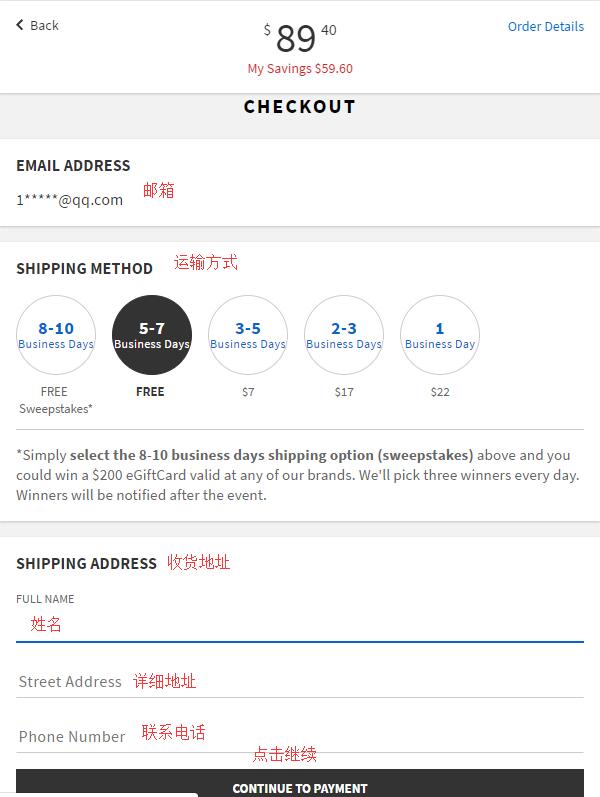
4. Choose the shipping method, fill in the shipping address as shown in the image below, then click "Continue". The shipping address here should be the forwarding address; just enter it according to the forwarding company's requirements.
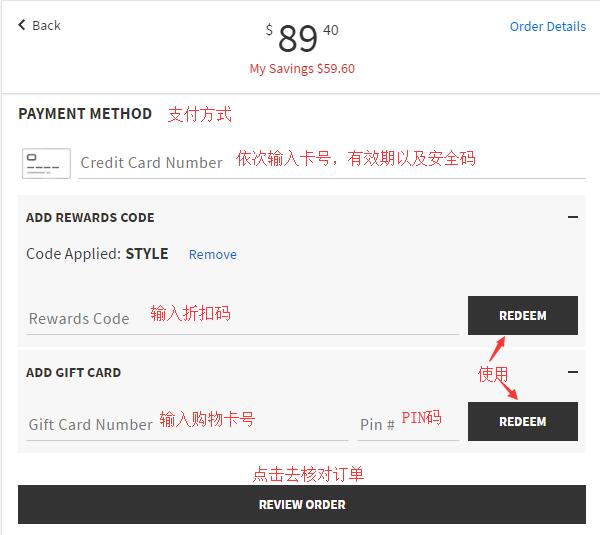
5. Next is the billing information. Select the payment method. After entering your credit card number, the dialog boxes for the expiration date and security code will appear automatically; just fill them in as prompted by the website. If you have a Gift Card, you can click to expand and enter the card number and PIN to use it. The billing address defaults to being the same as the shipping address, but you can also enter your real domestic address.
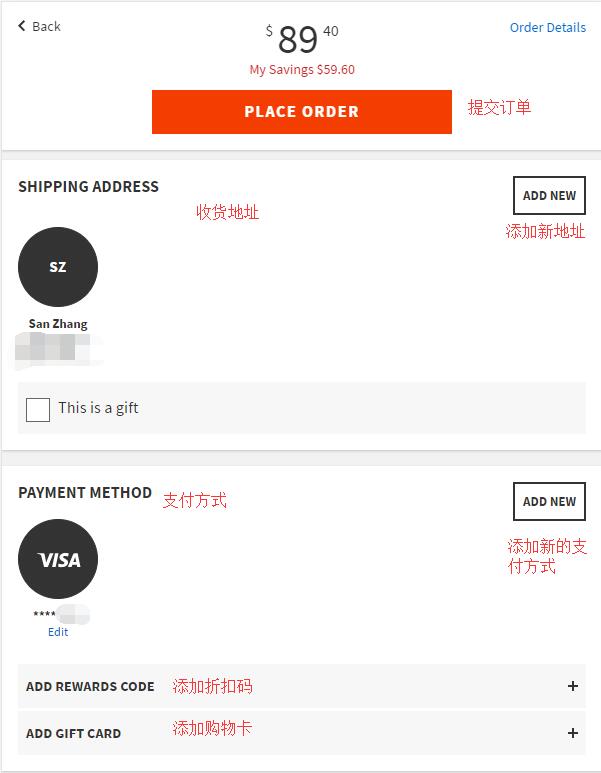
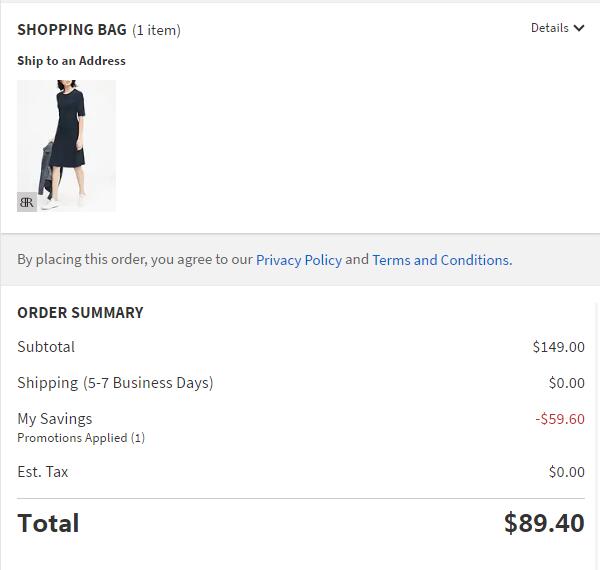
5. The final step is to review and submit the order. Carefully check the entered information, confirm it is correct, then click "Place Order" to submit the order and complete the purchase.
After that, just wait for the website to ship the order. Once you receive the confirmation email, go to the forwarding company to set up the shipping details, and then sit back and wait for your package!